← All support articles
Adding athletes and uploading a roster
Add one swimmer at a time, or paste a whole roster in from a spreadsheet, group by group.
Add one swimmer
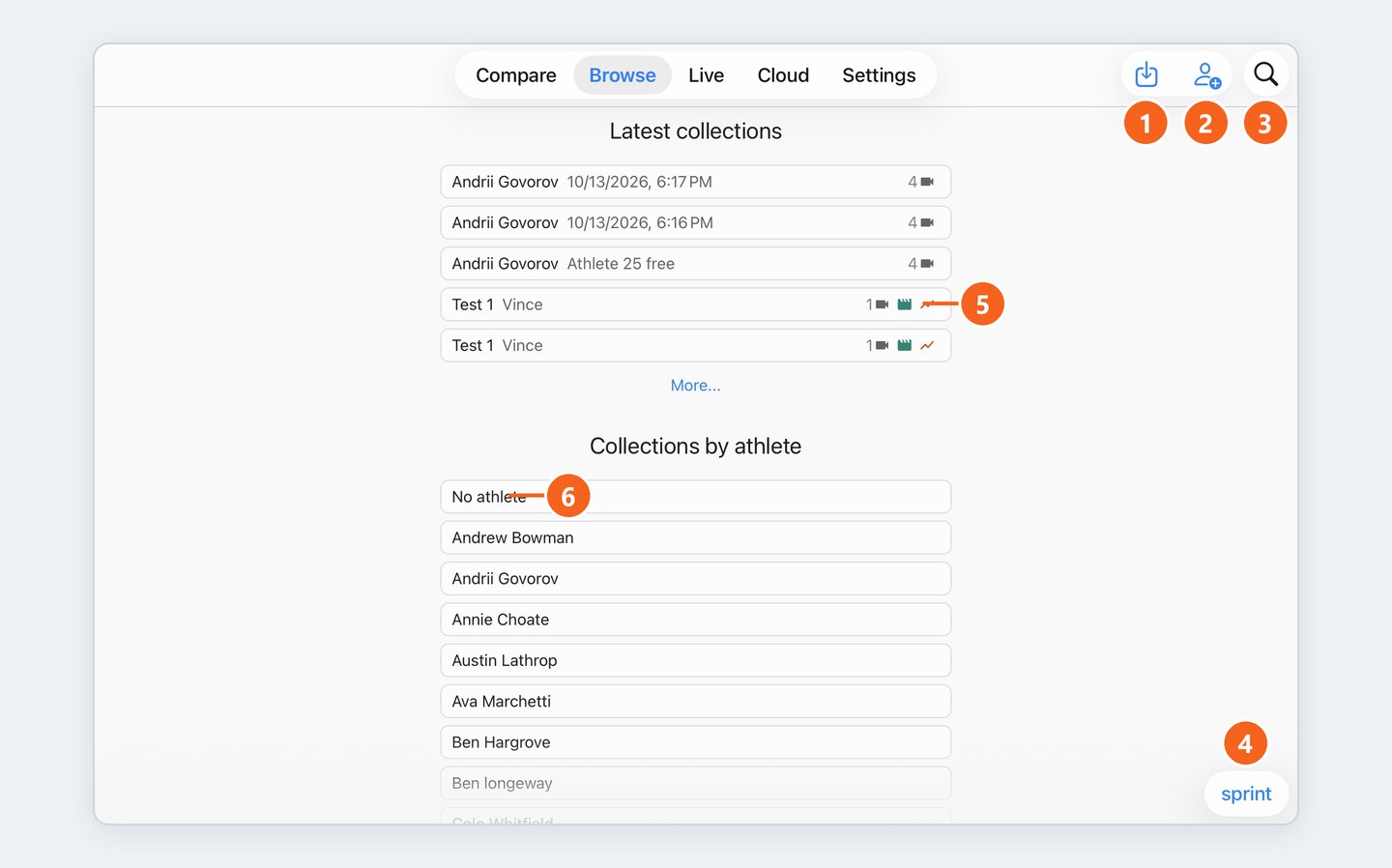
Browse tab → tap the person+ icon (top right).
Type the name and email, then tap Enter.
Repeat for the next swimmer.
Holding your iPad upright and can't see the person+ icon? It folds into a menu at the top right: tap it and choose Add athlete.

Paste in a whole roster
Save your roster as a CSV or Excel file in the Files app (iCloud).
Open it and copy the swimmers' names and emails.
Paste them straight into the Add athletes box.
Heads up: one athlete per line, or the whole list becomes one long name. See My roster pasted as one long name.
Heads up: swimmers go into whatever folder is open in Browse; the bottom-right corner shows which. To add swimmers without a group, open All athletes first.
Set up several groups at once
Open the first group's folder.
Copy just that group's swimmers from your file.
Paste them into the box.
Open the next group and repeat until your whole roster is in.

