← All support articles
Voiceovers, drawing and stopwatches
Talk over the video, draw on it, and time any part of the swim.
The tools for coaching on the video are in the player's top bar and on each angle. Everything you make is saved in the same collection as the swim.
Record a voiceover
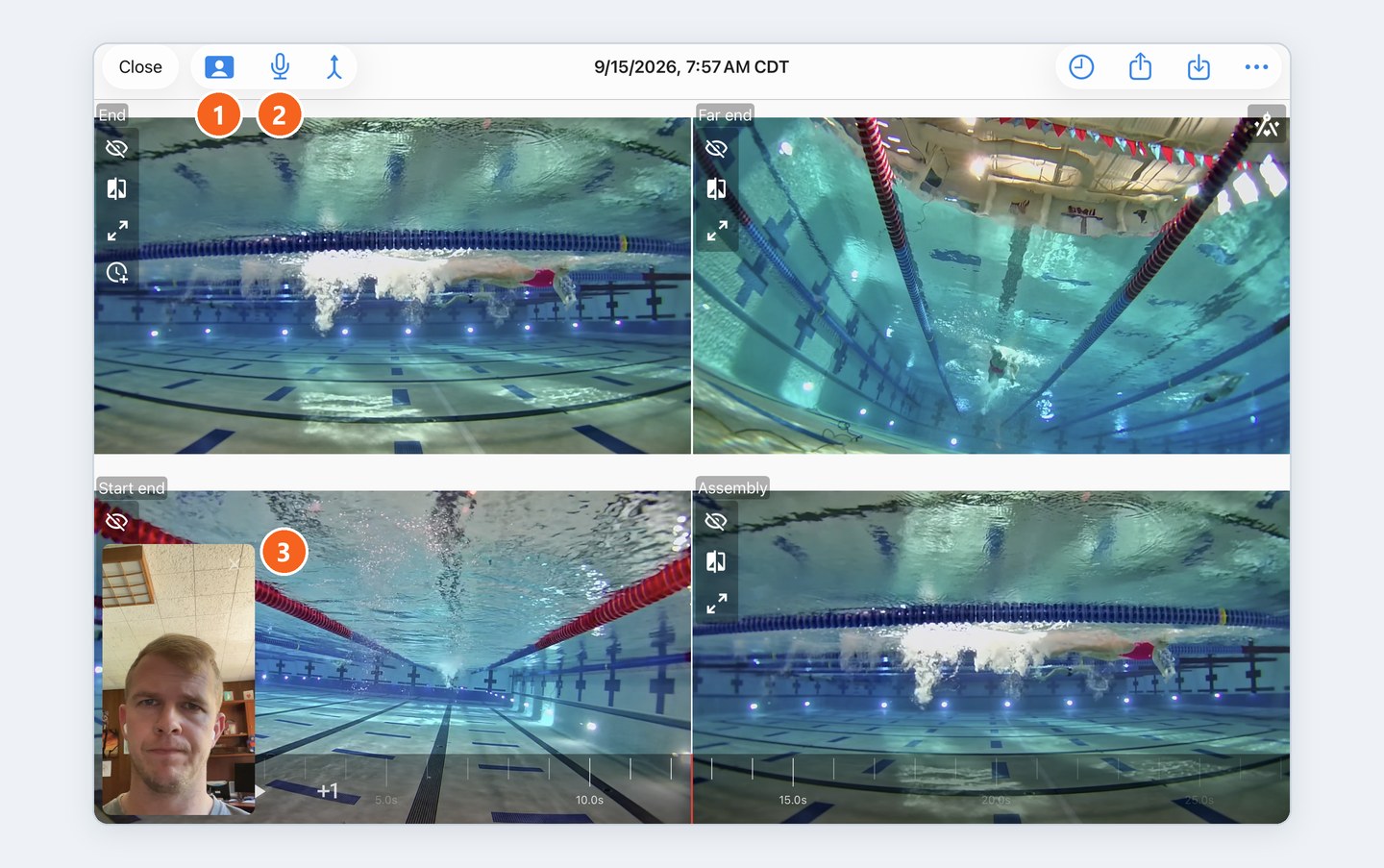
Open the collection and tap the microphone in the top bar.
Talk the swimmer through it while you play, scrub, pause and draw. All of it is captured.
To finish, tap the red stop icon in the top left, where the microphone was.
The voiceover is saved to the collection automatically, so you won't lose it, and the original angles stay untouched. From there you can share it as often as you like.
Put yourself on camera: tap the person-in-a-frame icon to turn on the iPad's front camera. Your face appears in a small window over the video.
Sound: each angle has a speaker icon to mute or unmute it. It really only matters for voiceovers.
Rename or delete it: ⋯ → Rename video or Delete video.
Send it: SwimClips Cloud is the best way to share a voiceover. See Sharing video with athletes.
Draw on the video
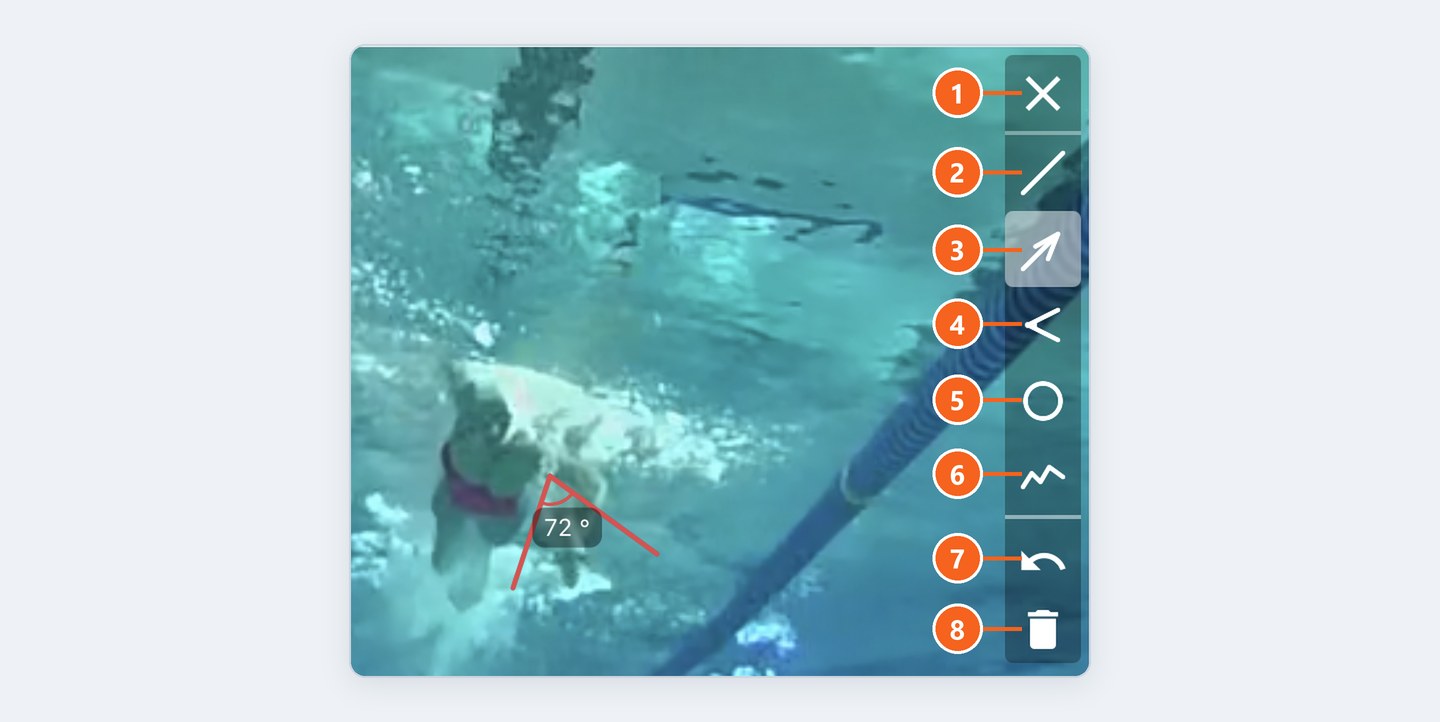
Tap the drawing icon in the top-right corner of an angle. The tools, top to bottom:
Line and arrow
Angle: draw two lines and it shows the angle between them in degrees. Good for body position, catch and kick.
Circle and freehand
Undo
Bin: deletes your drawings
Heads up: the ✕ at the top closes the tools and hides your drawings, but doesn't delete them. To clear them, use the bin.

Time any part of the swim
Tap the stopwatch in the top bar to pin a timer to the frame you're on. Add as many as you like: start to 15 m, wall to breakout, turn in to turn out.

