← All support articles
App icon guide
What every button in the SwimClips app does, screen by screen, and how buttons behave.
Most of the app runs on icons without labels. Find the screen you're on, then match the number on the picture to the list under it.
How buttons behave
Blue means selected or on. Selected cameras, the swimmer on a collection and your tags all turn blue. Tap again to turn it off.
Red means recording. Selected cameras get a red outline while they record.
There's no save button. Recordings, voiceovers, assemblies, drawings, tags and notes save on their own. The one exception is imported video: tap ⋯ → Save as new collection, or it won't be kept on the Hub.
Close shuts the whole collection. To leave full screen, tap the arrows on the video again instead.
Hiding isn't deleting. The eye with a line hides an angle, and the ✕ on the drawing tools hides your drawings. Bring them back any time.
Recorded angles can't be deleted. You can delete videos you made, like assemblies and voiceovers. To delete a whole collection, press and hold it in the Browse list.
Hidden angles are left out of assemblies and Compare all. Unhide anything you want included first.
Everything made from a recording stays with it. Voiceovers, assemblies and eo graphs all live in the same collection as the swim.
Missing a button? Holding your iPad upright folds some buttons into a menu at the top right.
Too many icons over the video? ⋯ → Hide controls gives you a clean view.
Live tab
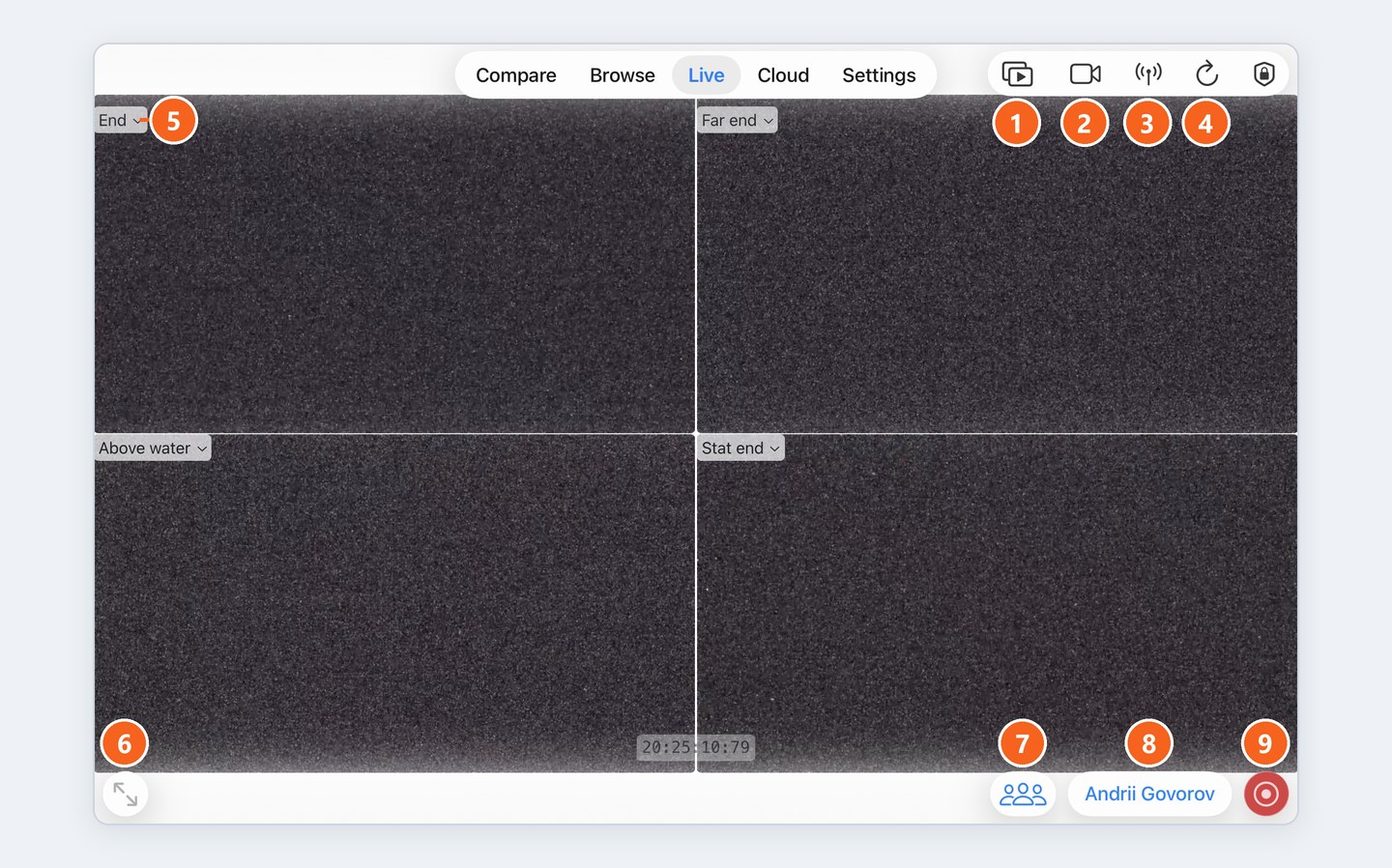
① Play in a box: opens your last recording.
② Video camera: turns on the iPad's own camera. While it's open, it records along with the Hub cameras.
③ Antenna: scans for cameras. Use it after you plug cameras into the Hub.
④ Circular arrow: refreshes the feeds if they look stuck.
Shield with a lock: SwimClips admin tools. You won't need it.
⑤ Camera name ⌄: rename the camera.
Tap a camera to select it. Only selected cameras record. Select none and every camera records.
⑥ Two arrows pointing apart: opens TiVo Mode for the selected cameras.
⑦ Three people: pick a team or group.
⑧ Swimmer's name: pick who you're recording. Skip it and the video goes to No athlete.
⑨ Red circle: record. Tap again to stop.
TiVo Mode
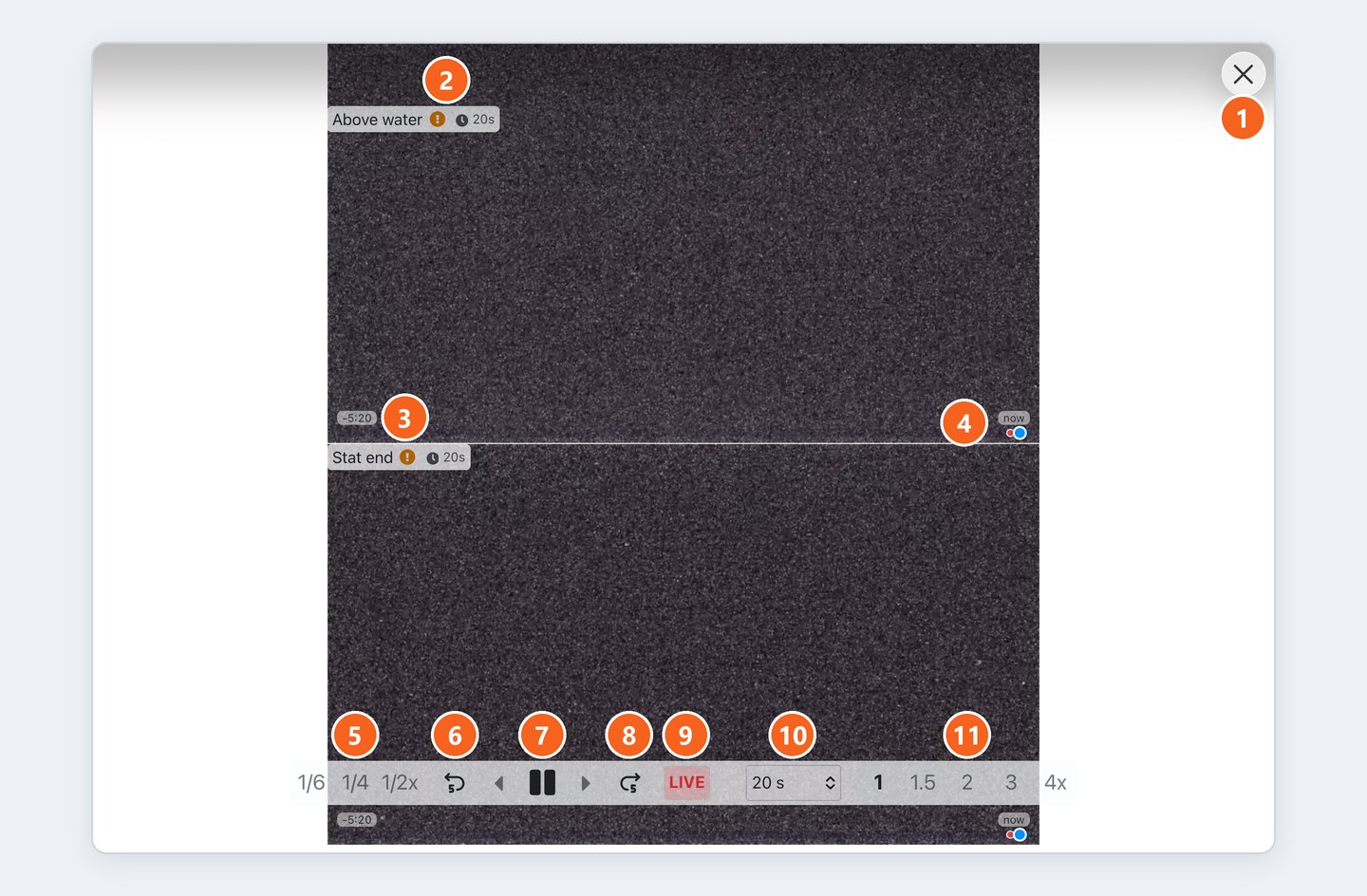
① ✕: close TiVo Mode.
② Camera label: shows the delay, for example 🕒 20s. An orange ! means the delay is still filling up.
③ Time, bottom left: how far back you can go: a 30-second buffer plus your delay.
④ now: where you are compared with live.
⑤ 1/6, 1/4, 1/2x: slow motion.
⑥ ↺5: back 5 seconds.
⑦ ◀ ❚❚ ▶: step back a frame, pause, step forward a frame.
⑧ ↻5: forward 5 seconds.
⑨ LIVE: jump to live, no delay.
⑩ Delay: set it to match your interval.
⑪ 1, 1.5, 2, 3, 4x: speed up to catch back up to your delay.
Player: top bar

① Close: closes the whole collection, not just the video you're on.
② Microphone: record a voiceover. Tap the red stop icon in the same spot to finish.
③ Merging arrows: start a Video Assembly. It only uses the angles that are showing.
④ Person in a frame: front camera, to put yourself on screen in a voiceover.
⑤ Stopwatch: pins a timer to the frame you're on. Add as many as you like.

⑥ Star: favorite the collection.
⑦ ⓘ: Collection Info: name, swimmers, tags and notes. Also the quickest way to file imported video under a swimmer.
⑧ Clock: your latest recordings. With a second iPad, swimmers can pull up their own swims at the wall while you keep recording.
⑨ Box with an up arrow: export and share.
⑩ Tray with a down arrow: import a video. It opens as a new collection.
⑪ Eye: only appears when an angle is hidden. Tap to bring it back.
⑫ ⋯: more options (below).
Player: on each angle
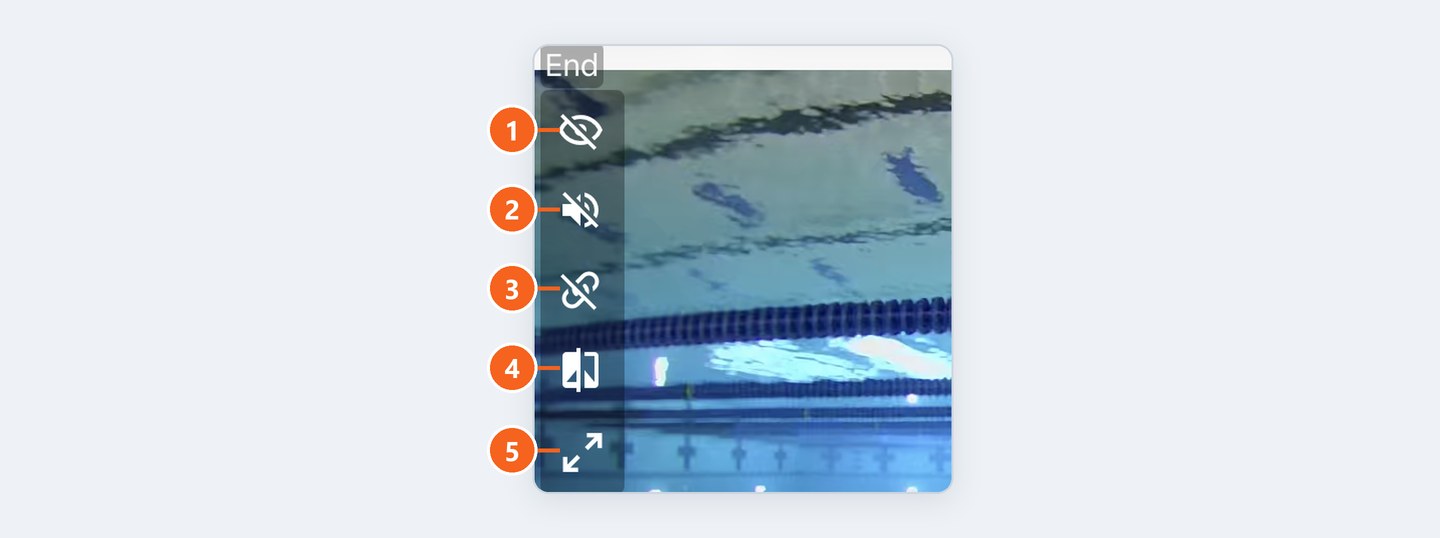
① Eye with a line: hide this angle.
② Speaker: mute or unmute. Mostly for voiceovers.
③ Chain with a line: unsync this angle. Mainly for lining up swims in Compare.
④ Split square: add this angle to Compare.
⑤ Two arrows pointing apart: full screen. Tap again to shrink it back.
The drawing tools open from the icon in the top-right corner of an angle:

Player: bottom

① −1 / +1: step one frame back or forward.
② Play: play and pause.
③ Timeline: scrub through the swim. It has momentum, so slow down for detail. For precise spots, press your thumb down and roll it.
④ 1x: playback speed, down to 1/16.
The ⋯ menu

Rename video and Delete video: for videos you made, like assemblies and voiceovers.
Reorder videos: changes the order of the angles.
Hide controls: hides the icons on each angle.
Compare all: sends every visible angle to Compare.
Save as new collection: saves imported video to the Hub.
Add eo: sync eo SwimBETTER data. See Syncing eo SwimBETTER graphs with video.
Enable eo: shows eo graphs you've hidden.
Drawing tools
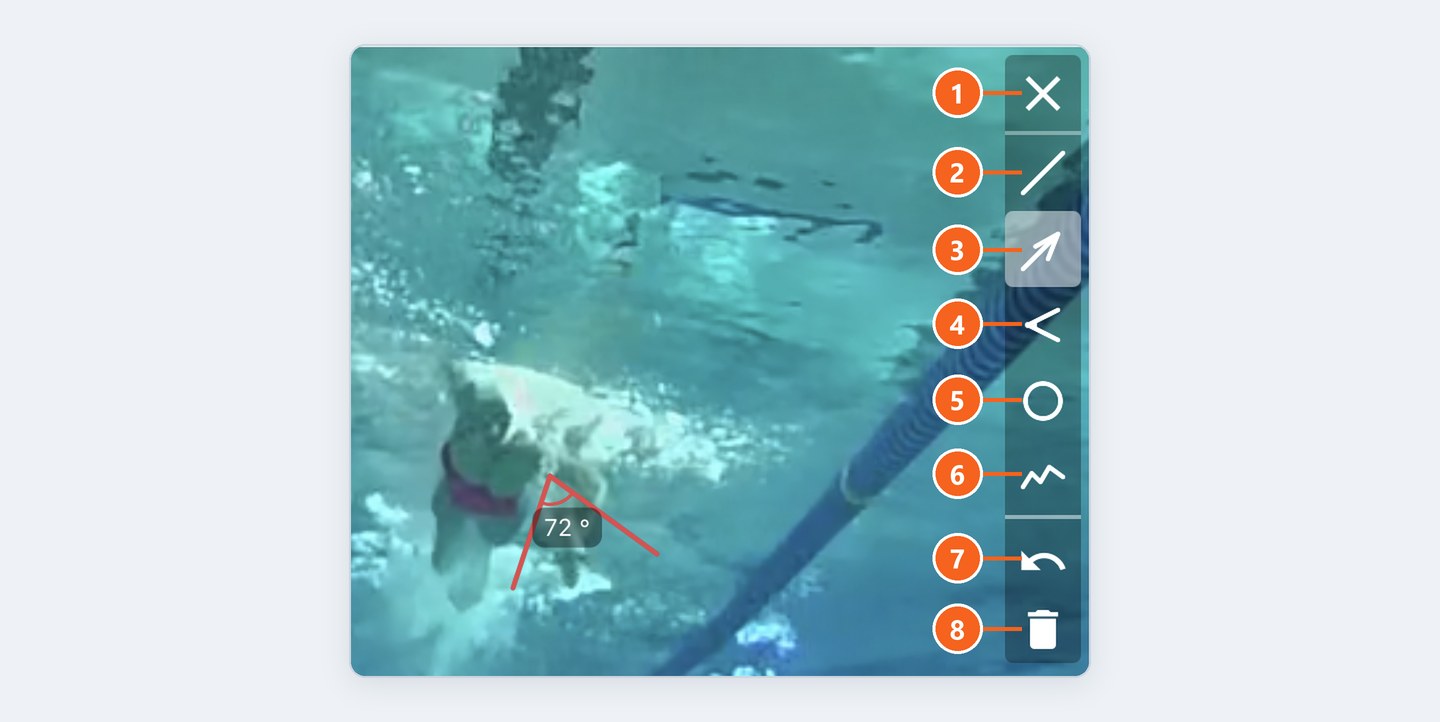
① ✕: close the tools. Your drawings are hidden, not deleted.
② Line
③ Arrow
④ Angle: shows the angle between two lines in degrees.
⑤ Circle
⑥ Freehand
⑦ Undo
⑧ Bin: deletes your drawings.
Collection Info (ⓘ)
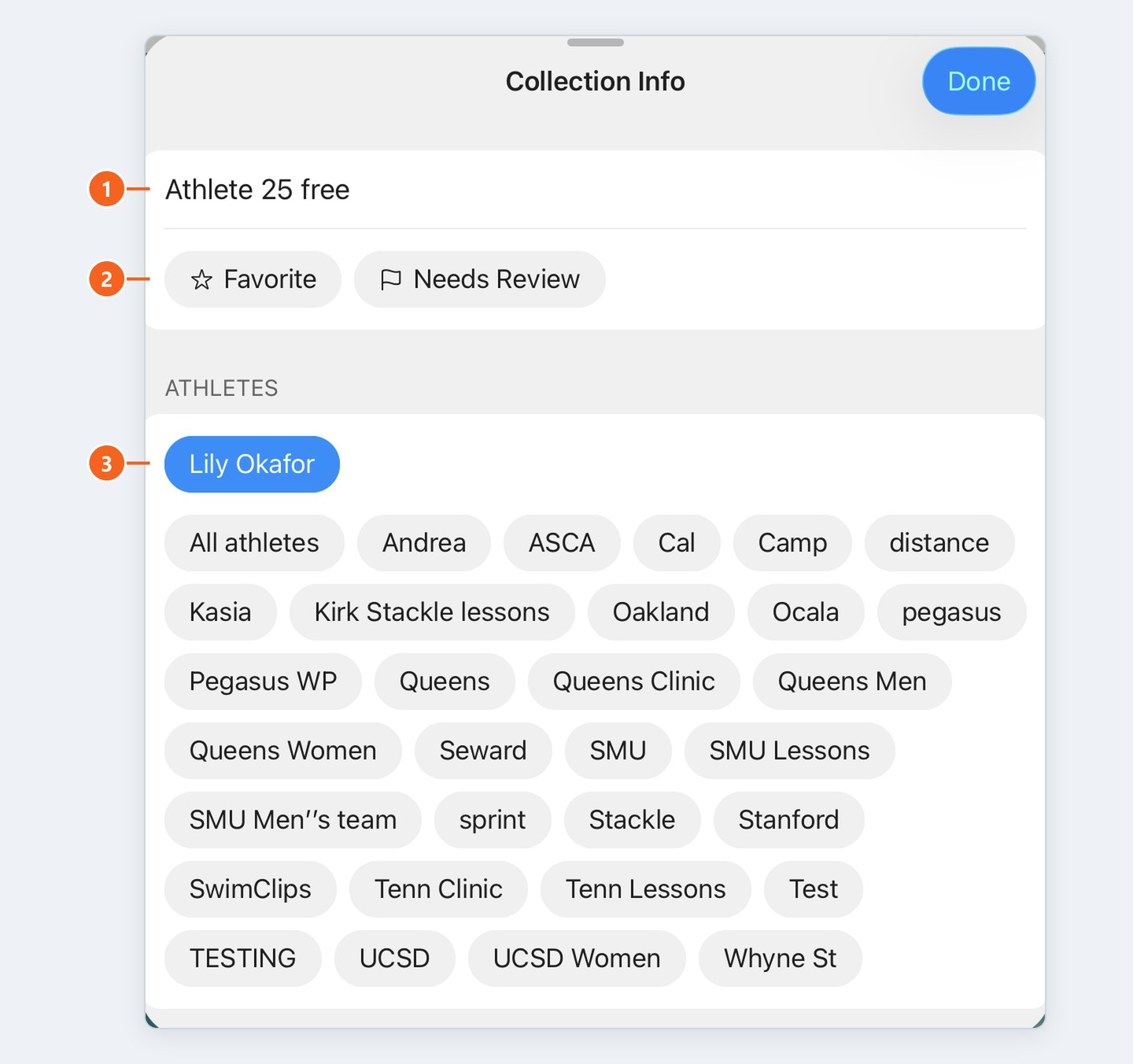
① Name: type over it to rename the collection.
② Favorite and Needs Review: mark collections to come back to. Filtering by them is coming.
③ Athletes: tap a swimmer to assign the collection to them. Tap more than one for relays or long recordings.
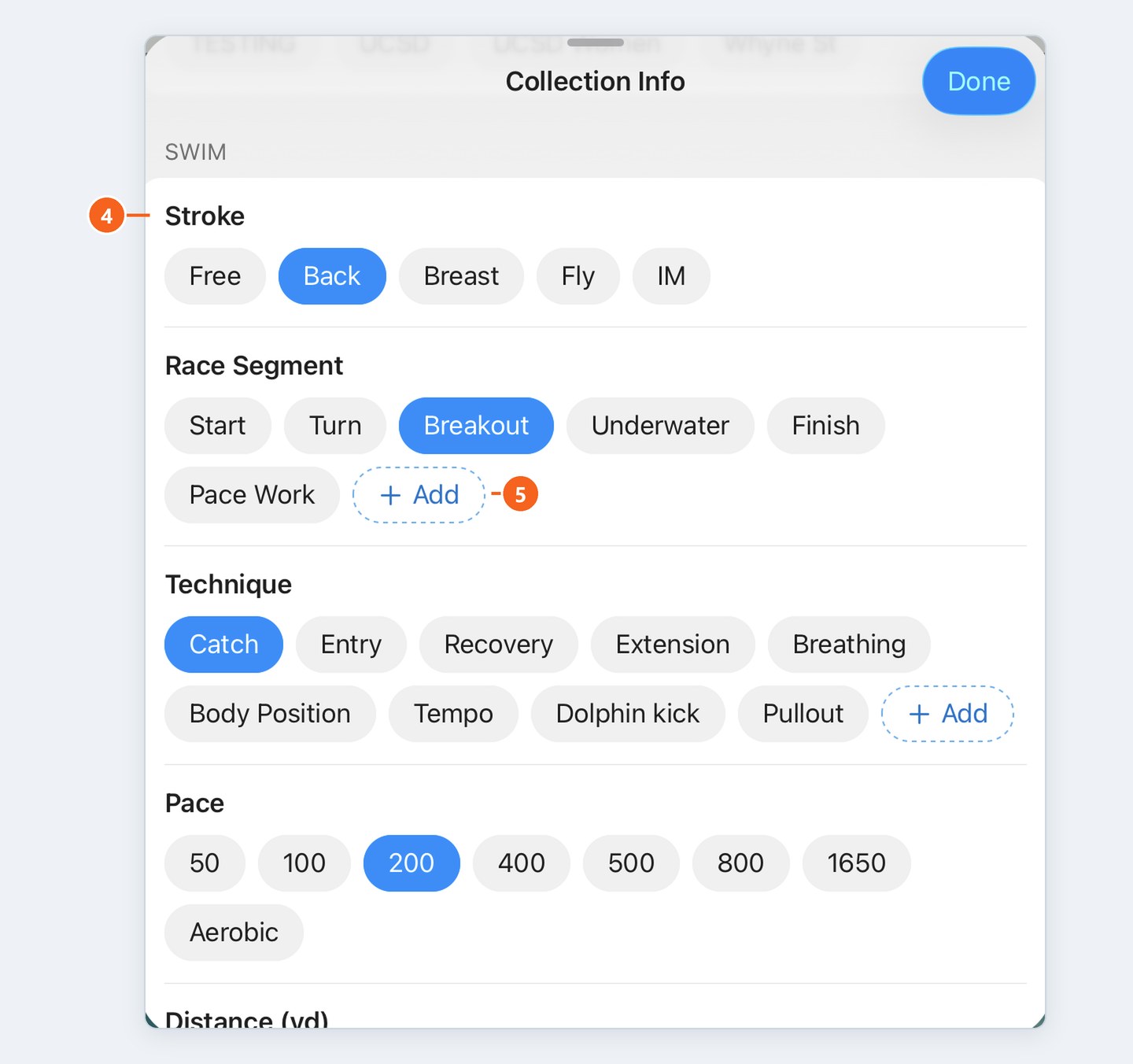
④ Tags: stroke, race segment, technique, pace, distance and pool size. Tap any that apply.
⑤ + Add: make your own tag in that category.
Screenshot coming soon: Note and Your fields.
⑥ Note: anything you want to remember about the swim.
⑦ + Add Field: track something we don't, like a meet name or drill number.
More in Tagging and organizing collections.
Export and Import menus
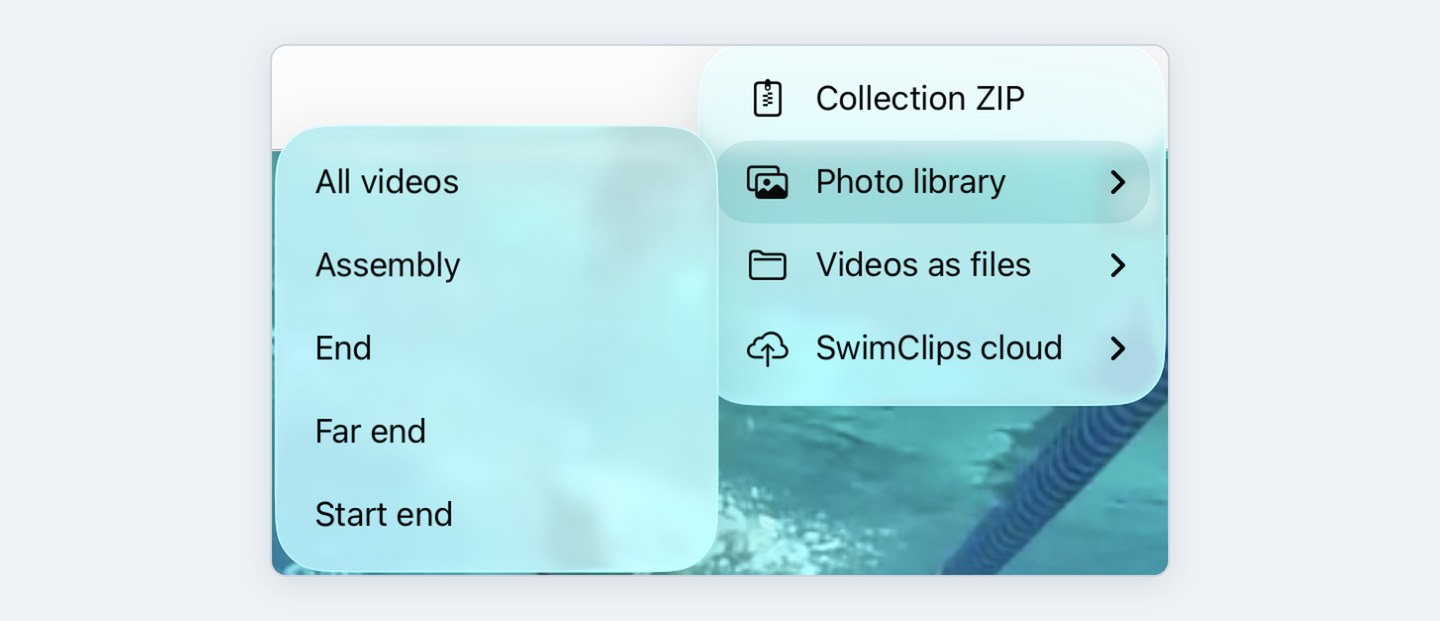
Collection ZIP: every angle in one file. Opens in the app exactly as it would on the Hub.
Photo library: saves to the camera roll. Choose all videos, the assembly or one angle.
Videos as files: saves to Files.
SwimClips cloud: emails the swimmer a link.
Which to use when: Sharing video with athletes.
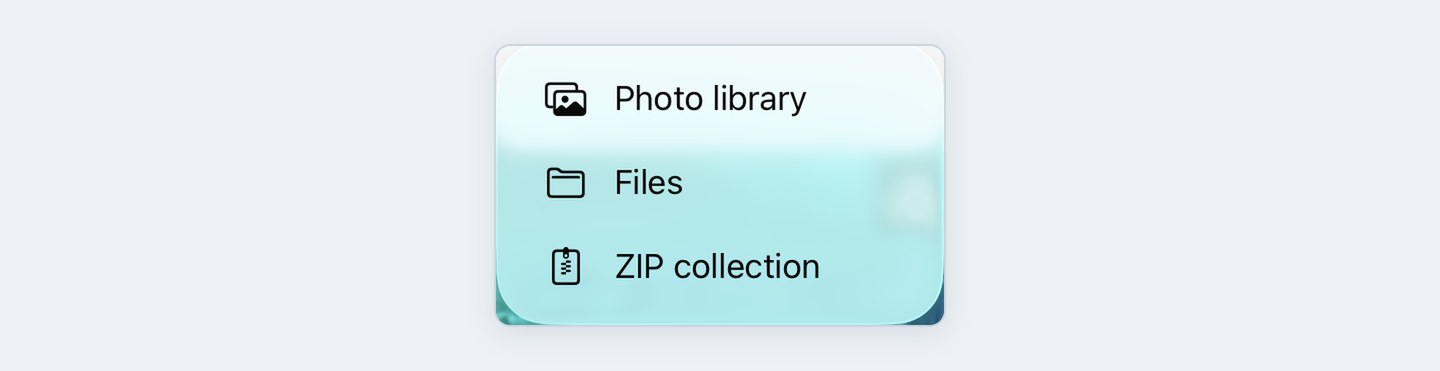
Photo library, Files or ZIP collection: where to bring video in from. See Importing your own videos.
Browse tab
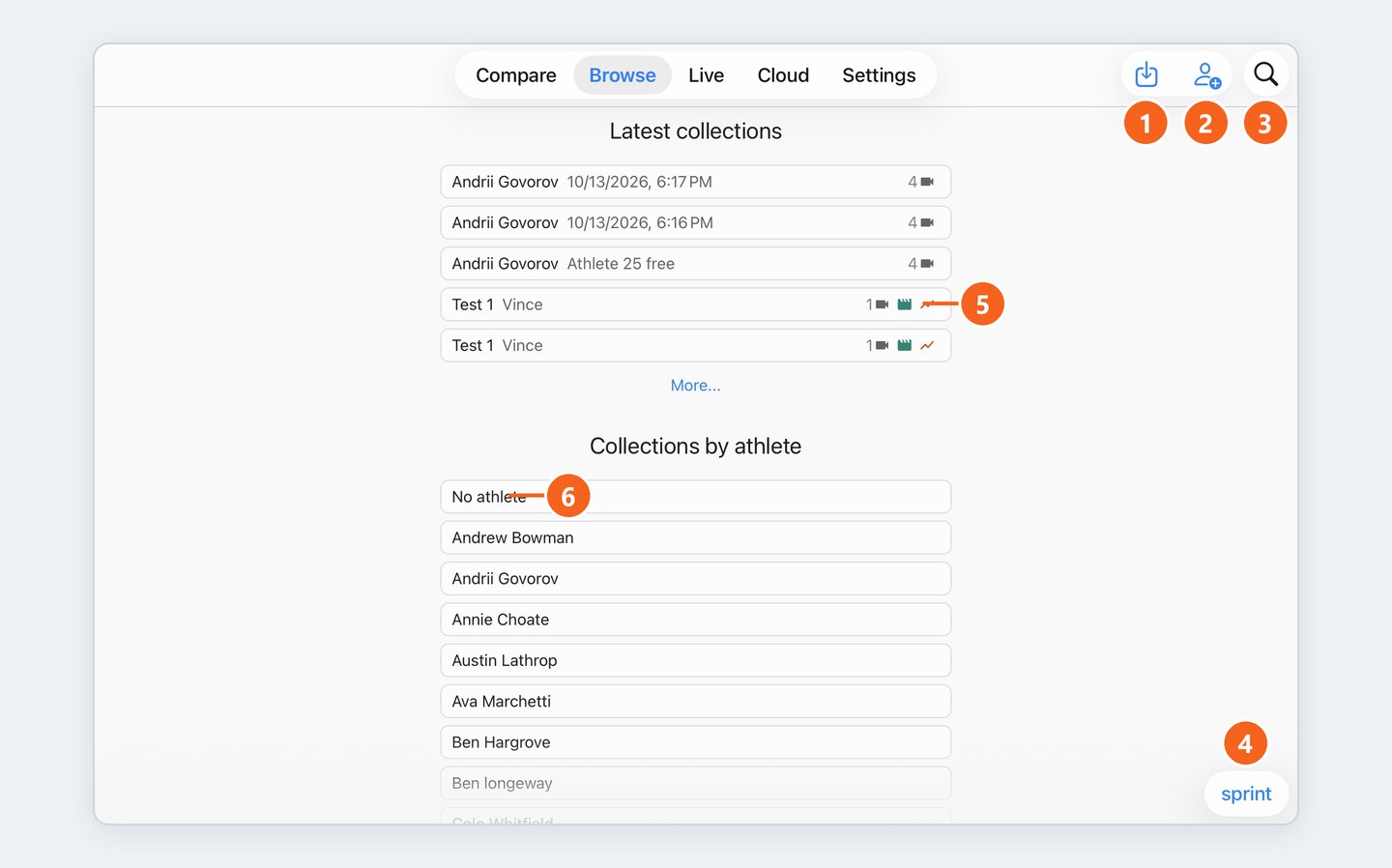
① Tray with a down arrow: import from Photos, Files or a ZIP.
② Person +: add swimmers, or paste in a roster.
③ Magnifying glass: search swimmers by name.
④ Group name: switch team or group, and manage them.
⑤ Icons on each collection (below).
⑥ No athlete: recordings that weren't assigned to a swimmer. See My video went to "No athlete".
Latest collections shows what was recorded or opened most recently, whichever folder you're in.

① Number + camera: how many angles were recorded.
② Green: has an assembly.
③ Graph line: has an eo graph.
Blue slate: has a Compare.
Microphone: has a voiceover.
Holding your iPad upright, Import and Add athlete fold into one menu:

Settings

① iPad app version: tell us this when you report a problem.
② iPad to hub connection: a green tick means your iPad is on the SwimClips network.
③ Hub's WiFi connection: tap ⋮ to connect the Hub to the internet for Cloud sharing.
④ Hub to internet connection: a green tick means sharing will work.
⑤ Hub version: should match App bundled hub version above it. If cameras won't show up, check this first. See No cameras showing.
⑥ Storage used: space used on the Hub.
⑦ License: how many cameras your system includes.

