← All support articles
Finding and playing back video
Where recordings live, the player controls, and hiding or showing angles.
Key terms
Collection: every angle from one recording, kept in sync in one view. Anything made from that recording (voiceovers, assemblies, eo graphs) lives in the same collection.
Video: any single video in a collection.
Recorded video: made by pressing record on the Live tab.
Created video: anything made from the originals, like an assembly, a voiceover or an eo graph sync.
Find a recording
Last recording: the replay icon, top right of the Live tab.
Browse tab → Latest collections, or open the swimmer's folder for everything of theirs.
From inside a collection: tap the clock icon in the top bar for your latest recordings.
Latest collections shows whatever was recorded or opened most recently, whichever team or group folder you have selected. The swimmer list below it changes with the folder.
Icons on each collection in Browse: the number is how many angles were recorded. Green means it has an assembly, a blue slate a Compare, a graph line an eo graph, and a microphone a voiceover.
Playback and frame-by-frame
Play plays the video.
−1 / +1 step back or forward one frame.
Scrub with the bar along the bottom. It has momentum: the faster you move your finger, the faster it scrubs. Slow down for detail.
1x sets the playback speed, all the way down to 1/16.
Tip: for precise work, press your thumb on the timeline and roll it slowly. Many coaches find it faster and smoother than stepping frame by frame.

Full screen
Tap the two arrows pointing apart on any angle to make it full screen. To shrink it back, tap the same spot: the icon changes to two arrows pointing in.
Heads up: don't use Close (top left) to leave full screen. Close shuts the whole collection.
Controls on each angle
Top to bottom, down the left edge of each video:
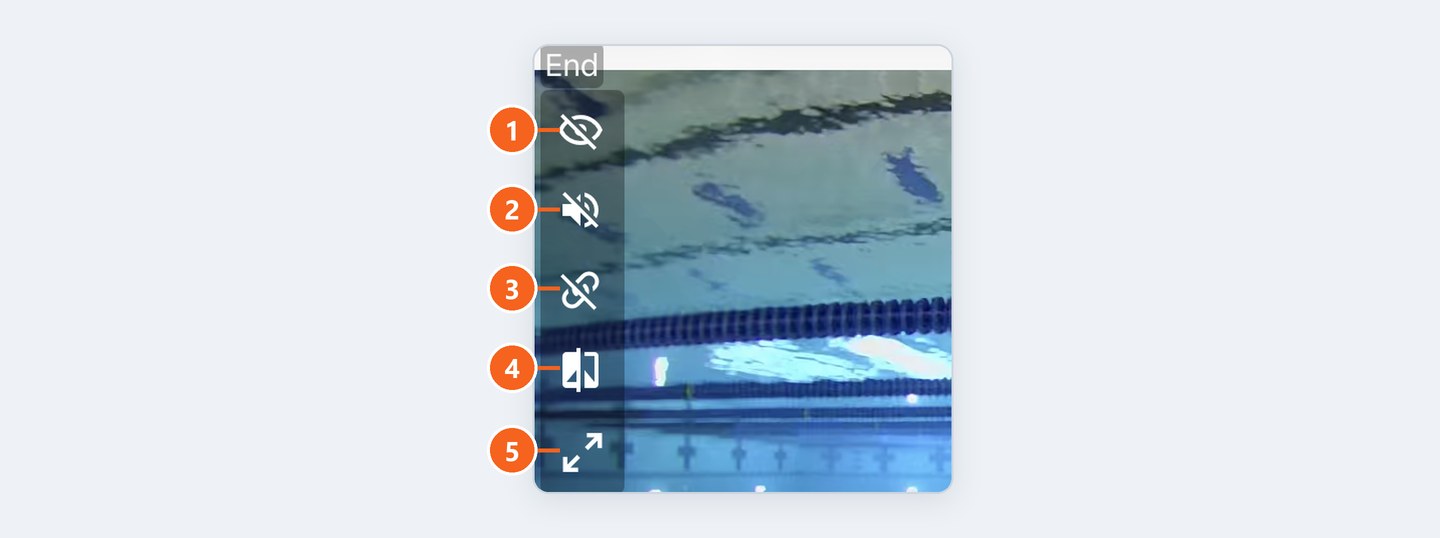
Eye with a line: hide this angle.
Speaker: mute or unmute. Mostly for voiceovers.
Chain with a line: unsync this angle. Mainly for lining up swims in Compare.
Split square: add this angle to Compare.
Two arrows: full screen.
Want a clean view? ⋯ → Hide controls. For drawing and voiceovers, see Voiceovers, drawing and stopwatches.
Hiding and showing angles

Hide a video: tap the eye-with-a-line icon in its top-left corner.
Bring hidden videos back: once an angle is hidden, an eye icon appears in the top bar. Tap it, or ⋯ → Enable disabled videos.
Heads up: hidden angles are left out of assemblies too. Unhide anything you want included first.
More in the ⋯ menu
Rename video and Delete video work on videos you made, like assemblies and voiceovers. Recorded angles can't be deleted.
Reorder videos changes the order of the angles.
Compare all sends every visible angle to Compare.
Delete a whole collection: press and hold it in the Browse list.
Every icon, screen by screen: App icon guide.

